
This article explains how to use the Data Analysis feature to analyze inventory data directly from list pages and queries. You don’t have to run a report or switch to another application, such as Excel. The feature provides an interactive and versatile way to calculate, summarize, and examine data. Instead of running reports using options and filters, you can add multiple tabs that represent different tasks or views on the data. Some examples are “expiring stock” or “top sellers,” or any other view you can imagine.
Inventory ad-hoc analysis scenarios
Use the Data Analysis feature for quick fact checking and ad-hoc analysis:
- If you don’t want to run a report.
- If a report for your specific need doesn’t exist.
- If you want to quickly iterate to get a good overview on a part of your business.
The following sections provide examples of inventory scenarios in Business Central.
Example: inventory on-hand
To analyze items in your inventory that are in stock, follow these steps:
- Open the item ledger entries list, and choose
 to turn on analysis mode.
 - Go to the Columns menu and remove all columns (select the box next to the Search field).
- Drag the Item No. field to the Row Groups area. Drag the fields in that order.
- Drag the field Remaining Quantity to the Values ares.
- Set a Not equal filter to 0 on Remaining Quantity. If you don’t allow negative stock levels, set a Greater than filter to 0.
- Optionally, add other fields to the analysis and maybe pivot on location or other fields.
- Rename your analysis tab to Inventory on Hand or something that describes this analysis.
 to turn on analysis mode.
The following image shows the result of these steps.

Example: track expiring or old stock
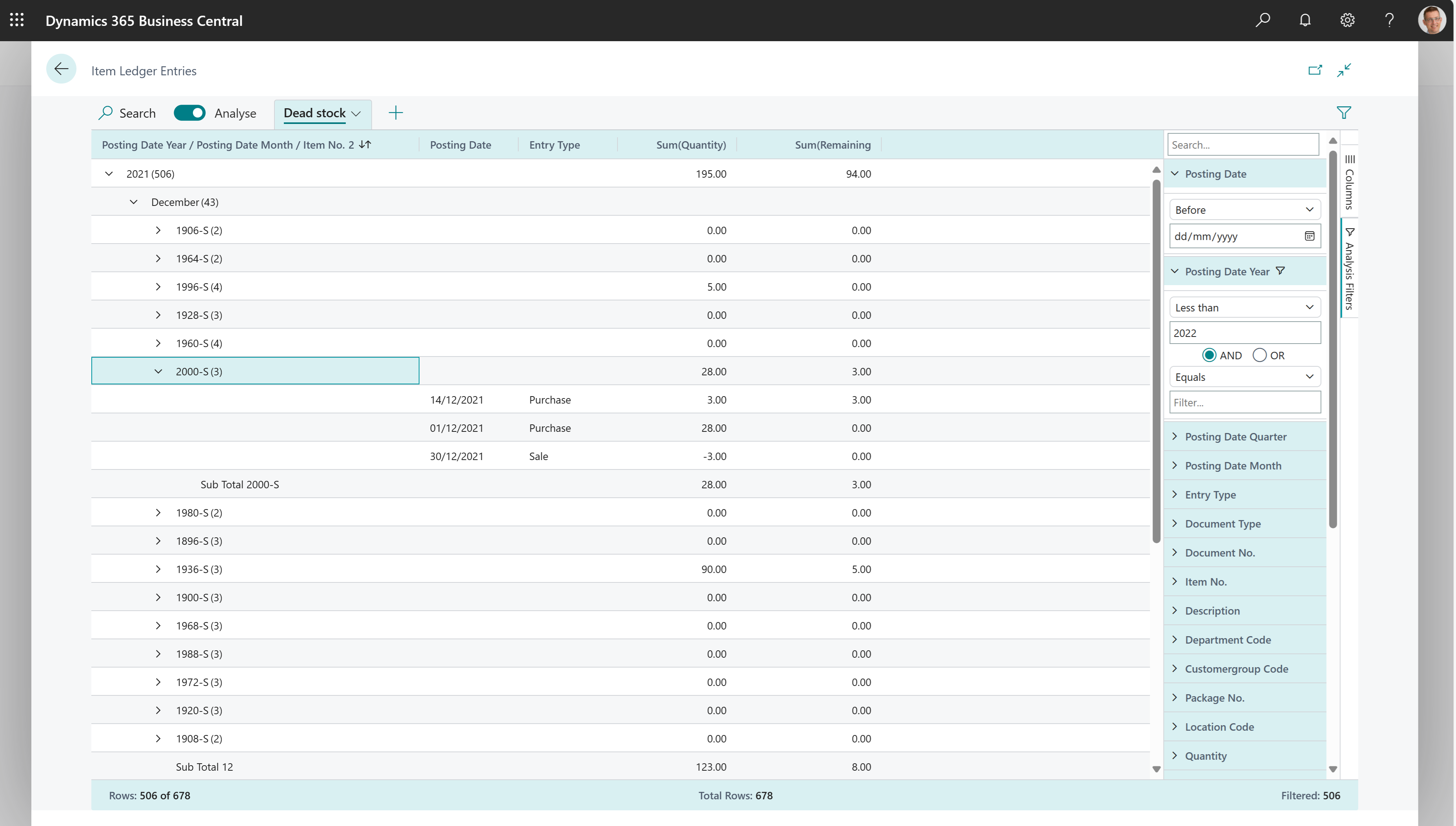
To analyze items in your inventory that have been on stock for a long time and aren’t selling well, follow these steps:
- Open the item ledger entries list, and choose to turn on analysis mode.
- Go to the Columns menu and remove all columns (select the box next to the Search field on the right).
- Drag the Posting Date Year, Posting Date Month and Item No. fields to the Row Groups area. Drag the fields in that order.
- In the Columns area, choose the Posting Date, Entry type, Quantity, and Remaining Quantity fields.
- Set a Less than filter to Posting Date to define what you mean by “old”.
- Rename your analysis tab to Old stock or something that describes this analysis.
The following image shows the result of these steps.
Example: returned items by return reason
To analyze returned items sorted by the reasons for their return, follow these steps:
- Open the item ledger entries list.
- Add the Return Reason Code field by personalizing the page. On the Settings menu, choose Personalize.
- Exit personalization mode.
- Choose to turn on analysis mode.
- Go to the Columns menu and remove all columns (select the box next to the Search field on the right).
- Drag the Return Reason Code and Posting Date Month fields to the Row Groups area. Drag the fields in that order.
- Drag the Quantity and Cost Amount fields to the Values area.
- Add any other fields that you want in the analysis, and enable them in the Columns area. For example, you might add the Posting Date, Document Type, Item No., and Document No. fields.
- Rename your analysis tab to Returned items by return reason or something that describes this analysis.
Example: inventory throughput
- Open the item ledger entries list, and choose to turn on analysis mode.
- Go to the Columns menu and remove all columns (select the box next to the Search field on the right).
- Turn on the Pivot Mode toggle (located above the Search field on the right).
- Drag the Posting Date Year, Posting Date Month, and Item No. fields to the Row Groups area.
- Drag the Quantity, Sales Amount, and Cost Amount (Actual) fields to the Values area.
- Drag the Posting Date Month field to the Column Groups area.
- Rename your analysis tab to Inventory throughput by Month or something that describes this analysis.
Inventory movements
To track inventory movements between locations, follow these steps:
- Open the list, and choose to turn on analysis mode.
- Go to the Columns menu and remove all columns (select the box next to the Search field on the right).
- Drag the Location Code field to the Row Groups area.
- Drag the Quantity field to the Values area.
- Add any other fields that you want in the analysis, and enable them in the Columns area. For example, you might add the Item No. field.
- Rename your analysis tab to Inventory movements or something that describes this analysis.
Data foundation for ad-hoc analysis on inventory
When you post a sales order, Business Central updates the customer’s account, general ledger, and item ledger entries.
- For each sales order line, an item ledger entry is created in the Item Ledger Entry table (if the sales lines contain item numbers). In addition, sales orders are always recorded in the Sales Shipment Header and Sales Invoice Header tables.
When you post a purchase document, Business Central updates the vendor’s account, general ledger (G/L), item ledger entries, and resource ledger entries.
- For each purchase line, as applicable, entries are created in the Item Ledger Entry table (if the purchase line is of the Item type). In addition, purchase documents are always recorded in the Purch. Recpt. Header and Purch. Inv. Header tables.
Get insights into item data with advanced KPIs and summary
Copilot gives you faster and more comprehensive item summaries with new KPIs and data points from the Item Statistics page. To open the page, use the Item Statistics action on the Item Card page. The page provides financial and performance metrics for an item across different time periods.
- Current Inventory Value: Track the current inventory value (in local currency), calculated as the sum of Cost Amount (Actual) + Cost Amount (Expected) on posted value entries for this item.
- Expired Inventory Value: Identify obsolete stock for timely action. Applicable for items with enabled item tracking and expiration dates. Calculated as the sum of Cost Amount (Actual) + Cost Amount (Expected) from value entries applied to open item ledger entries with an expiration date that’s before the work date.
The Sales section displays four time period columns with multiple metrics per period.
Time periods:
- This Fiscal Period – Current accounting period in the fiscal year
- This Fiscal Year – Current fiscal year to date
- Last Fiscal Year – Previous fiscal year
- Lifetime – All transactions since the item was created
Sales metrics:
- Sales Growth Rate (%): Compare current and prior periods to identify demand trends. Calculated as (Sales in the current period in the fiscal year – Sales in the prior period in the fiscal year) ÷ Sales in the prior period in the fiscal year. A positive value indicates growth, while a negative value indicates a decline in sales.
- Net Sales (LCY): View actual revenue after returns and discounts. Calculated as Total sales in the period – Total returns – Total given discounts.
- Gross Margin (%): Assess profitability by comparing revenue to cost of goods sold. Calculated as (Net Sales – COGS) ÷ Net Sales. A higher percentage reflects better profitability.
- Return Rate (%): Monitor product quality and customer satisfaction through return ratios. Calculated as Returned Quantity ÷ Total Sold Quantity. A lower percentage indicates fewer returns and higher product acceptance.
When you turn on the Summarize with Copilot capability, you automatically enable these enhancements.